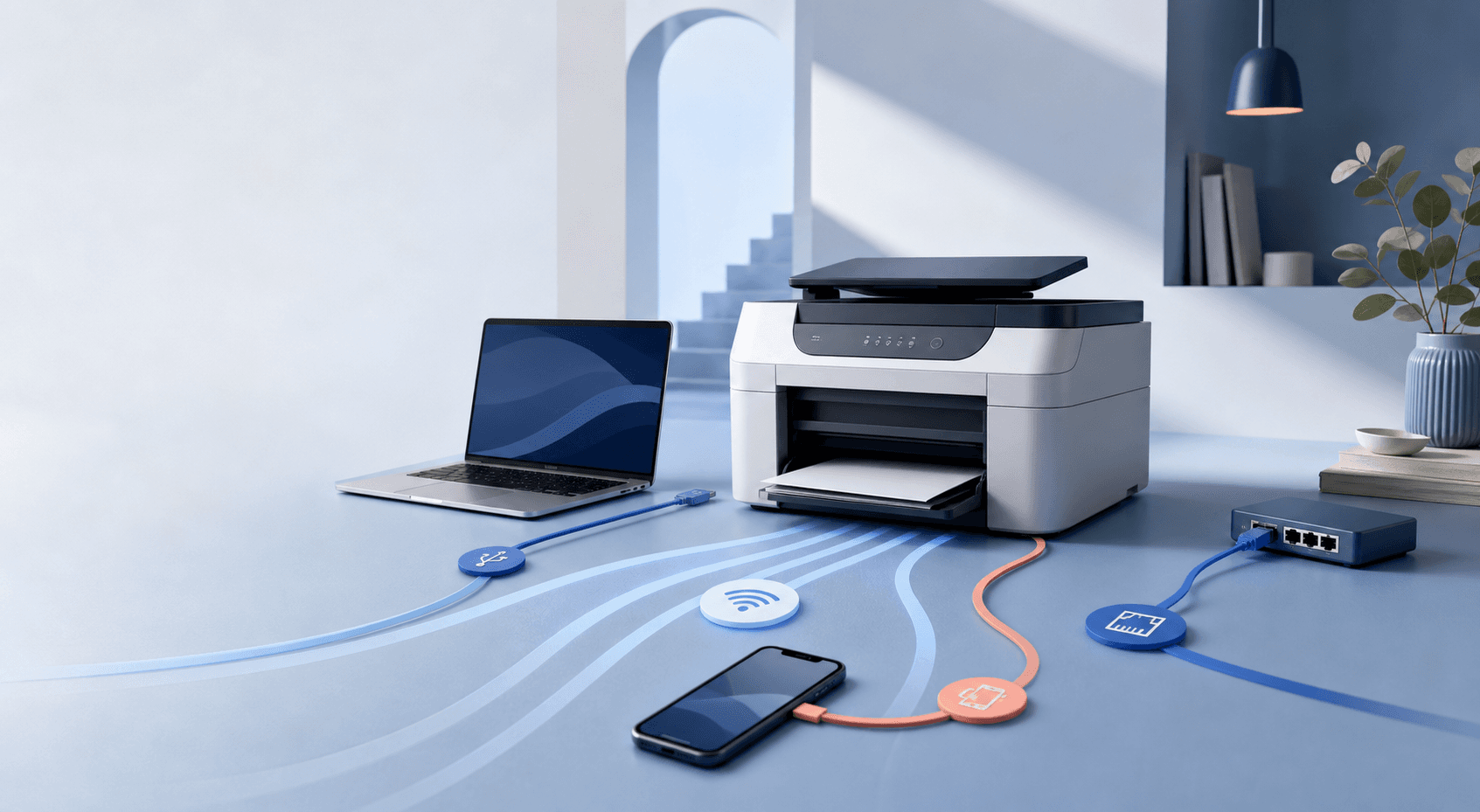
Let’s make this simple. Your printer may give you four or five ways to connect, but you only need one. Wi-Fi is a good choice for most homes. Ethernet is great for an office. USB is the easiest choice for one computer. Wi-Fi Direct is handy when there’s no router around.
Which connection should you use?
| Connection | Good for | Keep in mind |
|---|---|---|
| USB | One computer sitting near the printer | Only that computer will be connected |
| Wi-Fi | Laptops, phones, and a family sharing one printer | The printer needs a decent Wi-Fi signal |
| Ethernet | An office or a printer that never moves | You need a cable running to the router |
| Wi-Fi Direct | Printing when there is no router | Your device may leave its normal Wi-Fi for a moment |
Connecting with a USB cable
- Turn the printer on, but don’t plug in the USB cable just yet.
- Go to the printer maker’s real support website and download the software for your exact printer model.
- Open the setup file and choose USB. Plug in the cable when the setup asks you to.
- Print a test page. If your printer has a scanner, try scanning one page too.
Connecting through Wi-Fi
- Put the printer close to your router while you set it up. You can move it later.
- On the printer screen, look for Network, Wireless, or Wi-Fi Setup.
- Pick your Wi-Fi name and type in the password.
- Make sure your computer is on that same Wi-Fi network.
- Run the printer software and choose Wireless or Network when it asks how the printer is connected.
Connecting with Ethernet
- Plug an Ethernet cable into the printer’s network port. The other end goes into your router or network switch.
- Give it a minute. The router will give the printer an IP address.
- Run the printer setup on your computer and choose Wired Network or Ethernet.
- If several people use this printer, give it a reserved IP address. We have a separate guide for that below.
Using Wi-Fi Direct
Wi-Fi Direct lets your phone or computer talk straight to the printer. No router is needed. Turn Wi-Fi Direct on at the printer, find the printer’s Wi-Fi name and password, then join that network from your phone or computer. After that, add the printer in your printer settings or in the printer maker’s app.
Printing works. What about scanning?
This catches a lot of people. A computer can print with a basic driver, but the scanner may still do nothing. If you have an all-in-one printer, install the full software or the scan app from the printer maker. Then test both the glass and the document feeder, if you have one.
Still can’t find the printer?
- Restart the printer, computer, and router. It’s basic advice, but it fixes a surprising number of printer problems.
- Check that the printer and computer are using the same Wi-Fi name.
- Remove old copies of the printer from your computer, then add it again.
- If the computer still can’t find it, add the printer using its IP address.
- Try USB for a minute. If USB works, the printer is probably fine and the problem is with the network.