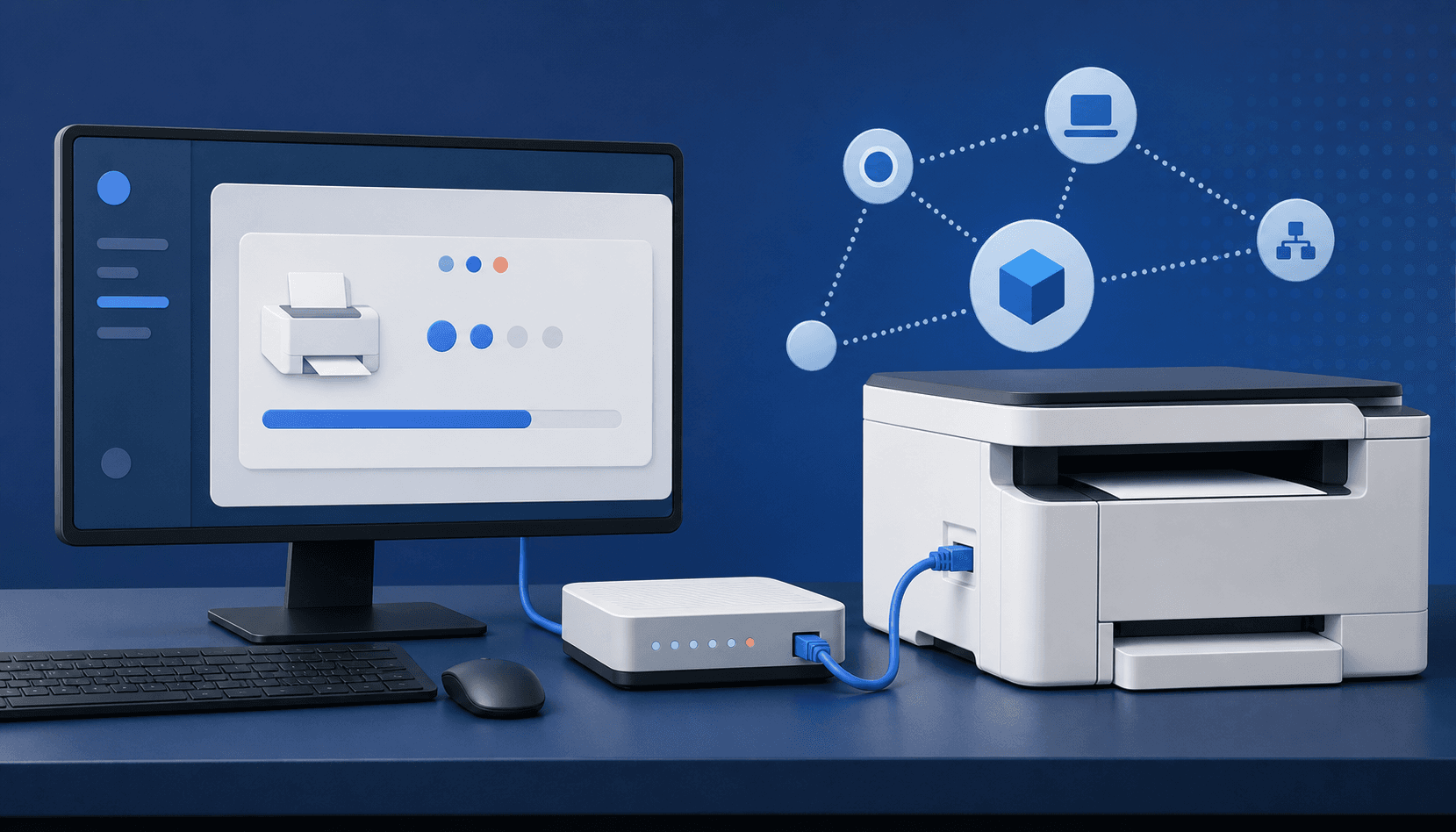
A driver is just the small piece of software that helps your computer talk to the printer. Your computer may install one on its own. That can be enough for basic printing, but the proper driver is better if you also want scanning, ink levels, two-sided printing, or all the other buttons you paid for.
Find the exact printer name
- Look for the full model name on the front or back of the printer.
- Don’t skip the letters at the end. A 4100 and a 4100dw may not use the same setup.
- Check whether your computer uses Windows or macOS and which version it has.
- If this is an all-in-one printer, you may need both print software and a scan app.
Download it from the printer maker
- Go straight to the official HP, Brother, Canon, Epson, Xerox, Lexmark, or other printer maker’s support page.
- Search for your full printer model.
- Choose your version of Windows or macOS if the website doesn’t find it for you.
- For a new all-in-one printer, the full software package is usually the easiest choice.
- Open the download and choose USB, Wireless, or Wired Network to match your setup.
| Download | What it gives you | When to use it |
|---|---|---|
| Full software | Printing, scanning, ink levels, and setup tools | Best for a new all-in-one printer |
| Basic driver | Simple printing without the extra apps | Good when you only need to print |
| Universal driver | One driver for several business printers | Mostly useful for an office IT person |
| Scan app | Scanning from the glass or document feeder | Install this when printing works but scanning does not |
Adding the printer by IP address
Print a network page or look in the printer’s Network menu to find its IP address. It will look something like 192.168.1.45. Add a printer on your computer, choose the IP option, and type that number in. When the computer asks for a driver, choose the exact printer model instead of a generic one. The generic driver may print, but it can hide color, two-sided printing, paper trays, and other useful settings.
What if the wrong driver is already there?
- Remove old or duplicate copies of the printer from your printer settings.
- Uninstall software for the wrong printer model.
- Restart the computer and the printer.
- Install the fresh driver from the printer maker’s website.
- Print a two-sided test page and try a scan to make sure all the features show up.