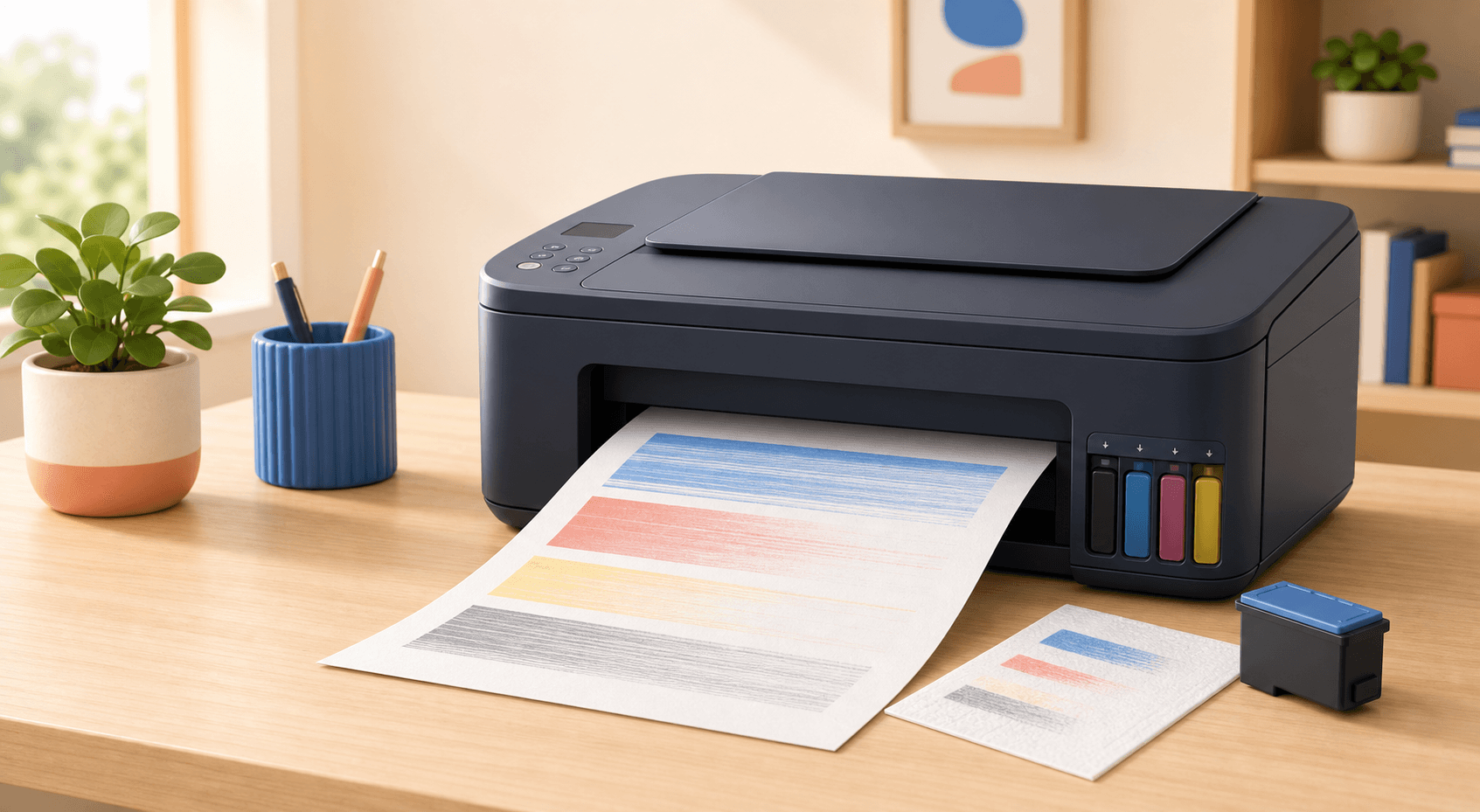
Faded text, lines across the page, missing colors, and blank sheets are common printer problems. You may only need to change a setting, clean the print head, or replace an empty cartridge. Work through these checks in order so you do not waste ink or money.
First, look at what the page is doing
| What you see | A common cause | Try this first |
|---|---|---|
| Faded text or color | Low ink or toner | Check the ink or toner level |
| Lines across the page | Clogged print head or dirty roller | Print a test page and run one cleaning |
| One color is missing | Empty cartridge or blocked nozzle | Check that color and run a nozzle check |
| Completely blank page | Cartridge seal, wrong setup, or blocked print head | Check the cartridges and print settings |
| Marks that repeat | Dirty or worn drum or roller | Check inside a laser printer for a repeating pattern |
Check the ink, toner, and paper
- Check the ink or toner level on the printer screen or in its app.
- Make sure every cartridge is clicked fully into place.
- If a cartridge is new, remove all orange tape, plastic seals, and shipping clips.
- Use clean, dry paper that matches the paper setting on the computer.
- Turn off Draft or Toner Save mode if the page is too light.
Print a test page from the printer
Use the printer menu to print a quality report, nozzle check, or test page. This test does not use your computer. If the printer’s own page looks bad, the problem is inside the printer or cartridge. If it looks good, check the file, app, driver, and print settings on your computer.
For an inkjet: clean the print head
- Find Print Quality, Maintenance, Tools, or Clean Print Head in the printer menu or app.
- Run one cleaning cycle.
- Print another nozzle check and compare it with the first one.
- If it is better but not fixed, wait about 30 minutes and run one more cleaning.
- Run the alignment tool after the colors are printing again.
For a laser printer: check the toner and drum
- Take out the toner cartridge and gently rock it from side to side. Do not shake it hard.
- Look for a sealing strip that was left on a new toner cartridge.
- Check whether the printer says Replace Drum, Imaging Unit, or Maintenance Kit.
- If the same mark repeats down the page, the drum or a roller may be dirty or worn.
- Do not touch the shiny drum surface. Fingerprints can damage print quality.
Check the print settings and driver
- Choose the correct paper type, such as Plain Paper, Cardstock, Labels, or Photo Paper.
- Choose Normal or Best quality instead of Draft.
- Make sure Print in Grayscale or Black Ink Only is turned off when you need color.
- Try printing the same page from another app.
- Install the correct driver from the printer maker if the settings are missing or wrong.
When should you replace a part or get help?
- Replace the cartridge if it is empty, leaking, damaged, or still missing a color after cleaning.
- Replace the drum or imaging unit when the printer asks for it or marks repeat in the same place.
- Get help if ink is leaking inside the printer, paper keeps getting dirty, or you hear grinding sounds.
- For an older low-cost printer, compare the repair price with the price of a replacement before spending money.