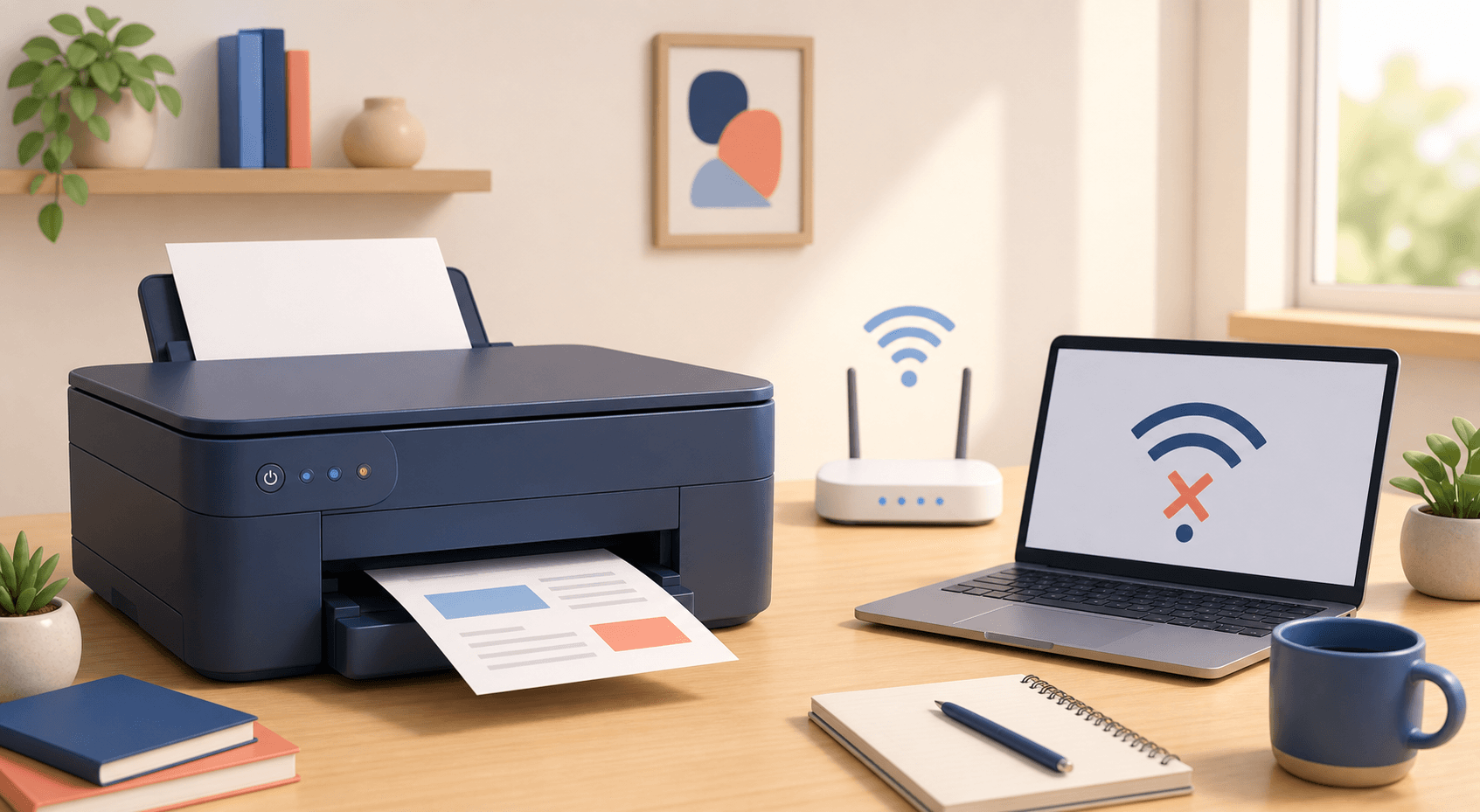
A printer can say it is offline even when it is turned on and sitting right beside you. Most of the time, the printer is fine. The computer has lost its connection, a print job is stuck, or the printer joined the wrong Wi-Fi network. Start with the easy checks below.
Start with these quick checks
- Make sure the printer is turned on and does not show a paper, ink, toner, or cover error.
- Check that paper is loaded and all printer doors are closed.
- Restart the printer. Unplug it for 30 seconds, plug it back in, and turn it on.
- Restart your computer or phone.
- If the printer uses Wi-Fi, restart the router too. Give it a few minutes to come back online.
Make sure both devices are on the same Wi-Fi
Your computer and printer need to be on the same home or office network. Check the Wi-Fi name on both devices. Stay off the guest network because it may stop devices from seeing each other. If your router has 2.4 GHz and 5 GHz names, your printer may only work with 2.4 GHz.
- Move the printer closer to the router for a quick test.
- Print a network report from the printer menu and check the Wi-Fi name.
- Reconnect the printer if the report says Not Connected.
- Turn off Wi-Fi Direct unless you are using it on purpose.
Clear any stuck print jobs
- Open Printers & Scanners on your computer.
- Choose your printer and open the print queue.
- Cancel every job in the list.
- Make sure Pause Printing and Use Printer Offline are turned off.
- Send one small test page. Do not send the same job over and over.
Choose the right copy of the printer
Old printer setups can stay on the computer after a new driver or Wi-Fi setup. You may see the same printer two or three times. One copy may say Offline while another one works. Remove the old copies, add the printer again, and set the working one as your default printer.
Check the printer’s IP address
An IP address is the number your router gives the printer. It may look like 192.168.1.45. If that number changes, your computer may keep looking at the old address. Print a network report and compare the printer’s current address with the address in the printer port on your computer.
Remove and add the printer again
- Remove the printer from Printers & Scanners.
- Restart the printer and computer.
- Download the correct software from the printer maker’s real support website.
- Run the setup and choose Wi-Fi, Ethernet, or USB to match your connection.
- Print a test page. If it is an all-in-one printer, test the scanner too.
Still offline? Try this last check
- Type the printer’s IP address into a web browser. If the printer page opens, the network connection is working.
- Try a USB cable for a few minutes. If USB works, the problem is with the network, not the printer.
- If Ethernet is connected, turn off Wi-Fi on the printer. Use one network connection at a time.
- At work, ask the person who handles the network to check the printer port, firewall, and IP address.